Relays
A relay connects one incoming URL to one Discord channel. Make one relay per source (one for Vikunja, one for your CI, and so on). Several relays can send to the same channel through one saved Discord webhook. To send the same events to two channels, create two relays.
- The relay URL
- Saved Discord webhooks
- The relay’s Discord channel
- Security
- Delivery attempts
- Enabling and disabling
- Deleting
- Relays list
The relay URL
Every relay gets a URL like:
https://your-host/h/vikunja-tasks_k3J9xQp2LmT8aB4cD6eF8gH0
The part after /h/ is the relay’s key: a readable slug from its name, then 24 random characters. The key is the only thing that authenticates an incoming webhook, so treat the URL as a secret.
- Renaming a relay doesn’t change its URL.
- Setup → Issue a new URL replaces the key. The old URL stops working immediately (it returns
404), so update it in the other service.
The URL accepts POST and PUT with a JSON body. See the ingest endpoint for every response code.
Saved Discord webhooks
Discord webhook URLs are saved once and reused. The Discord webhooks page lists yours, with the relays that use each one.
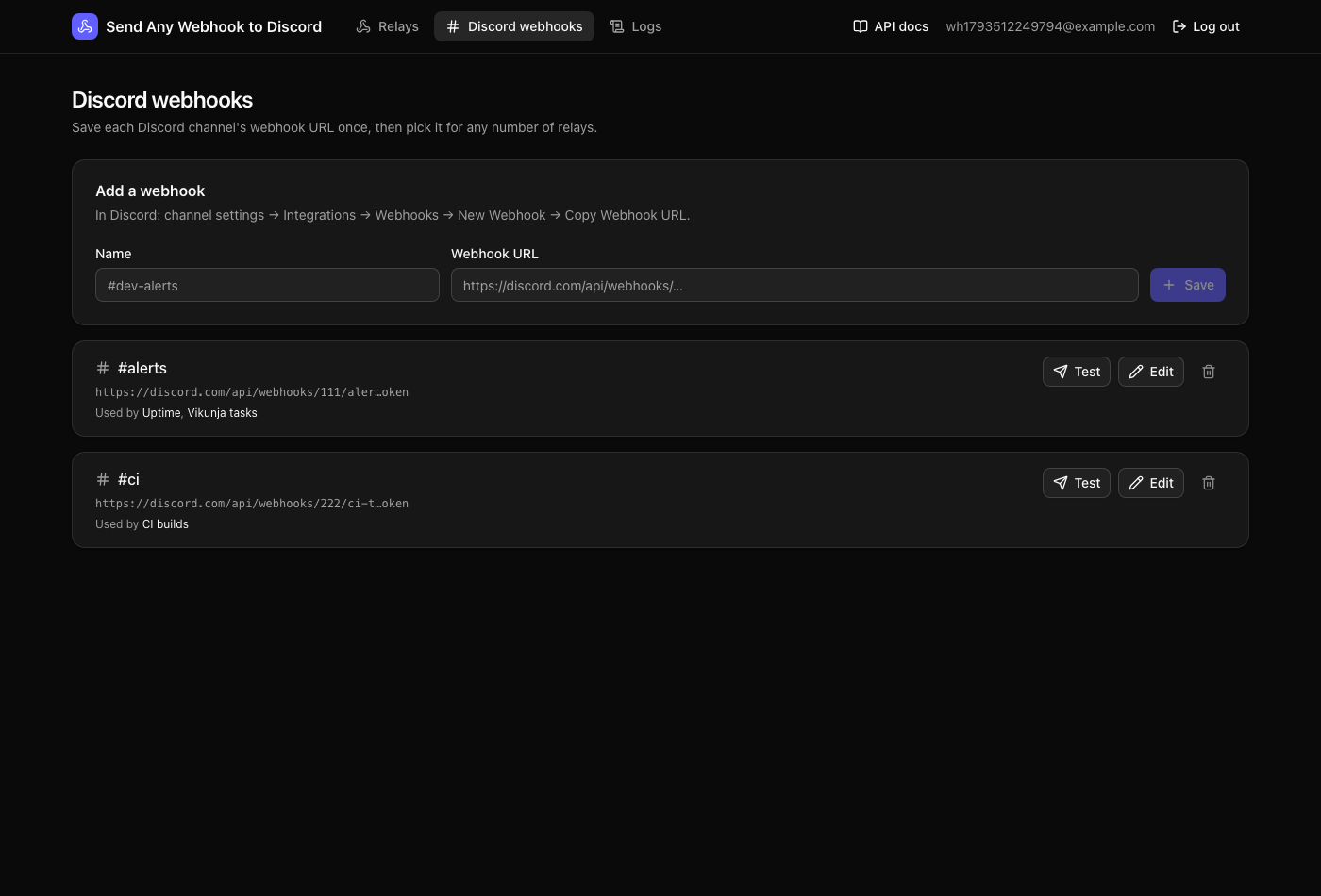
- Add a webhook there with a name (like
#dev-alerts) and its URL from Channel settings → Integrations → Webhooks → Copy Webhook URL. You can also just paste a URL while creating a relay; it’s saved automatically. Pasting a URL you already saved reuses that entry instead of creating a duplicate. - Edit renames it or replaces its URL. Every relay using it follows the new URL, so moving a team to a new channel is one change.
- Test posts a short message to the channel.
- Delete works only when no relay uses it. Move those relays to another webhook first. (The webhook itself keeps existing in Discord.)
The app accepts only real Discord webhook URLs (https://discord.com/api/webhooks/…, including ptb. and canary.), stores them encrypted with APP_SECRET, and never shows the token again. The UI shows a masked version like …/webhooks/1234…/AbCd…wxyz.
The relay’s Discord channel
When creating a relay, pick a saved webhook from the dropdown (your first one is preselected). To add one, click New webhook (or + New webhook… in the dropdown), enter a name and the URL; it’s saved to your list and selected automatically. To switch later, open the relay’s Setup tab, choose another webhook under Discord channel and click Use this webhook. Send a test message checks the channel works.
If Discord answers 401 or 404 for a delivery (the webhook was deleted in Discord or its token is wrong), the app disables every relay that uses that saved webhook, so they stop retrying a webhook that can’t work. Edit the saved webhook with a working URL (or move the relays to another one) and turn them back on.
Security
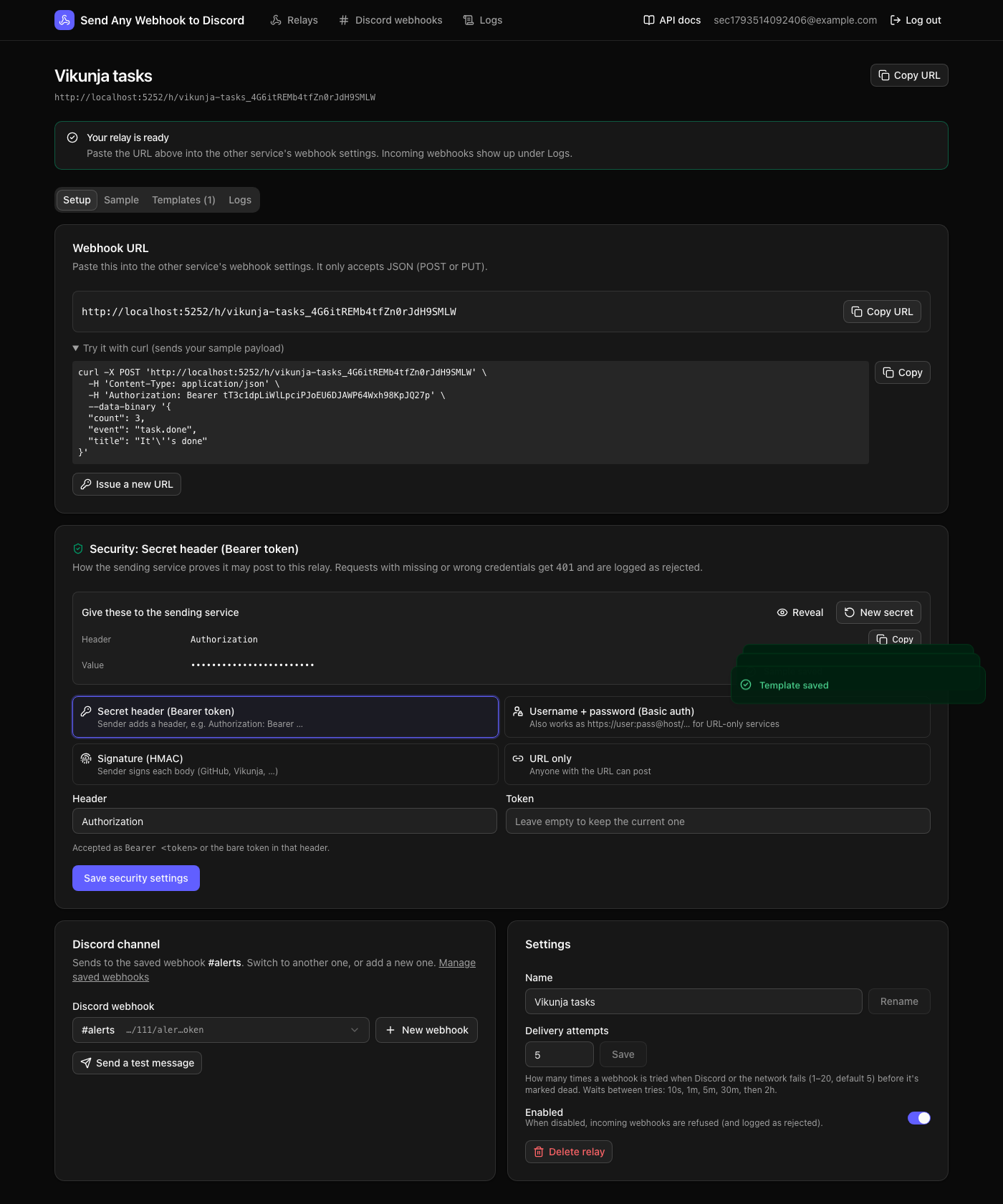
The URL’s random key is hard to guess, but URLs leak (logs, screenshots, chat). So each relay can also require credentials, chosen when you create it and changeable on its Setup → Security card:
| Method | The sender… | Good for |
|---|---|---|
| Secret header (default) | adds a header, Authorization: Bearer <token> by default. You can pick another header (e.g. X-Api-Key); the bare token is accepted too | Any service that lets you add headers |
| Username + password | sends HTTP Basic auth | Services that only take a URL: use https://user:pass@your-host/h/… (shown on the card) |
| Signature (HMAC) | signs the raw body with a shared secret and sends the signature in a header | Services with a “webhook secret”: presets for GitHub (X-Hub-Signature-256: sha256=…), Vikunja (X-Vikunja-Signature), or custom header, algorithm (SHA-256/1/512), encoding (hex/base64) and prefix |
| URL only | nothing extra | Quick tests; anyone with the URL can post |
- Leave the secret or password empty to have a strong one generated (or kept, when editing). For HMAC, paste the secret the service gives you.
- The card shows exactly what to give the sending service, hidden until you click Reveal, with copy buttons. Secrets are stored encrypted with
APP_SECRET, shown only to the relay’s owner, and never included in the relay list. - New secret replaces it immediately; requests with the old one get
401. - Requests with missing or wrong credentials get
401and are logged as rejected with the reason (Authentication failed: …). They’re never queued and never become the sample in capture mode. - Try it with curl includes the right credentials, so you can test from a terminal. For HMAC it computes the signature with
openssl.
Relays created before credentials existed keep working as URL only; the relays list marks them with a URL only badge.
Delivery attempts
Setup → Settings → Delivery attempts sets how many times a webhook is tried when Discord or the network fails before it’s marked dead: 1–20, default 5. Waits between tries are 10s, 1m, 5m, 30m, then every 2 hours. New webhooks use the current setting; Retry on an old webhook also picks it up.
Enabling and disabling
The switch on the relays list (or Setup → Enabled) turns a relay off without deleting anything. While it’s off:
- incoming webhooks get
403and are logged as rejected, so you can see what you missed; - webhooks already in the queue are marked skipped instead of being sent. Retry them after turning the relay back on.
Deleting
Setup → Delete relay removes the relay, its templates and all of its logs. The URL stops working. This can’t be undone.
Relays list
The home page lists your relays with:
- the URL and a copy button;
- when the last webhook arrived, and its status;
- Waiting: how many webhooks are pending, being sent, or waiting for a retry. Click it to see them in the logs;
- a No template badge when the relay can’t deliver yet. Webhooks are received but skipped until you create a template.