Mapping fields
The template editor is where a payload becomes a Discord message. It has three columns:
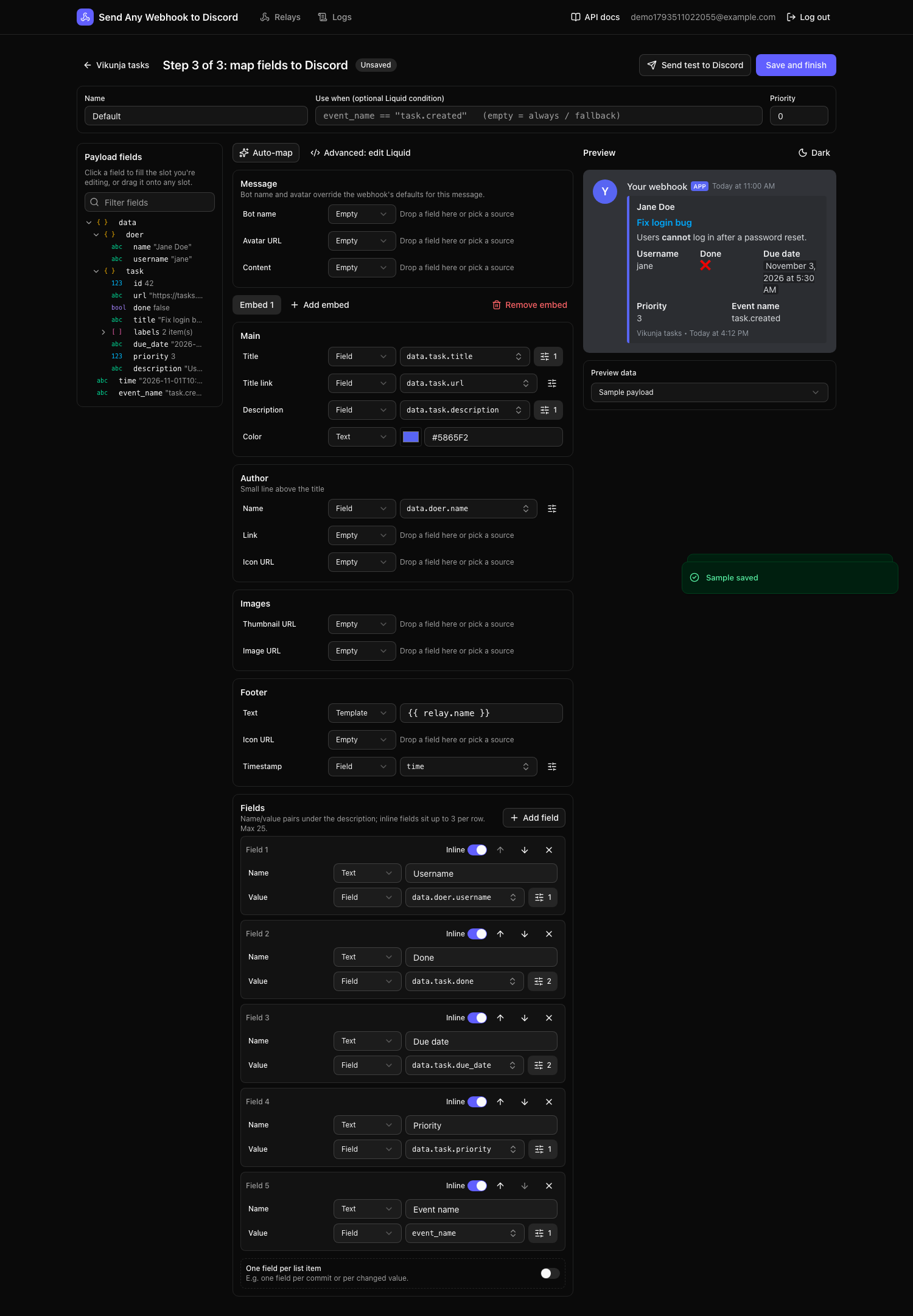
- Payload fields (left): every field of the sample, with its type and value.
- The mapping (middle): one row per part of the Discord message.
- Preview (right): what the message will look like in Discord, updated as you type, with warnings underneath.
The preview uses the same renderer as the delivery worker, so what you see is what gets sent.
- Filling a slot
- The message parts
- Formatting a field
- Value maps
- Fields
- Auto-map
- Preview and warnings
- Advanced mode
Filling a slot
Each row (“slot”) has a source dropdown:
| Source | Use it for | Example |
|---|---|---|
| Empty | Leave this part out | — |
| Field | A value from the payload | data.task.title |
| Text | Fixed text | Vikunja |
| Template | Text mixed with fields (Liquid) | New task in **{{ data.project.title }}** |
| Value map | A different output per value | priority 1 → grey, 3 → orange, else blue |
Three ways to put a field into a slot:
- Drag a field from the left column onto any slot.
- Click inside a slot, then click a field on the left. In a Template slot, this inserts the field at the cursor.
- Pick it from the slot’s field dropdown. It’s searchable, and for URL, date and color slots it lists suitable fields first.
The message parts
| Section | Slots |
|---|---|
| Message | Bot name, avatar URL, content (plain text above the embeds) |
| Main | Title, title link, description, color |
| Author | Name, link, icon URL (a small line above the title) |
| Images | Thumbnail (small, right), image (large, bottom) |
| Footer | Text, icon URL, timestamp (shown in each reader’s timezone) |
| Fields | Name/value pairs; inline ones sit up to 3 per row |
A message can have up to 10 embeds. Use Add embed to add more, and the tabs above the sections to switch between them.
Formatting a field
Next to a Field slot, the sliders button opens format options:
| Option | Effect |
|---|---|
| From each item take | For a list of objects: use this key of each item (e.g. title of each label) |
| Join list with | Turn a list into text, e.g. , gives bug, auth |
| Date | Show a date as a Discord timestamp: relative (“in 2 days”), date + time, date only… Discord shows it in each reader’s timezone |
| Case | UPPERCASE, lowercase or Title Case |
| Max length | Cut longer text and end it with … |
| If empty, show | Fallback when the field is missing or empty, e.g. — |
| true/false as ✅/❌ | For booleans |
| Number with separators | 1234567 becomes 1,234,567 |
A list without “Join list with” is joined with , automatically, and an object is shown as JSON.
Value maps
A value map picks the output from a field’s value. For example, colour by status:
When state is | Show |
|---|---|
success | green |
failure | red |
| else | grey |
Values are compared as text, so 3 matches the number 3. For the colour slot, outputs can be colour names (red, orange, yellow, green, teal, blue, purple, pink, grey, black, white, blurple) or hex values like #5865F2.
Fields
Add field creates a name/value pair. The name is usually fixed text (Priority) and the value a field. Use the arrows to reorder, and the Inline switch to put fields side by side.
One field per list item
For payloads with a list (commits, changed values, line items), turn on One field per list item, choose the list, and choose which key of each item becomes the field’s name and value. For example, with commits: [{ "id": "a1", "message": "Fix bug" }, …], name = id and value = message give one field per commit.
Auto-map
Auto-map builds a first version of the mapping from field names and values:
- Title:
title,subject,summary,name, … (elseevent,action,type, …) - Description:
description,body,message,text, … - Title link:
html_url,url,web_url,link, … (must be an http(s) URL) - Timestamp:
timestamp,created_at,time,date, … (must look like a date) - Author:
name/username/loginunderuser,sender,author,doer,actor, …; the avatar becomes the author icon - Fields: up to 6 more short values (IDs and URLs are skipped)
- Footer: the relay’s name
Auto-map runs by itself when you open the editor for a relay that has a sample and no template yet. Click it again any time; it replaces the current mapping.
Preview and warnings
Under the preview, warnings point at the slot that caused them, and the same warning appears on the slot itself:
- “… is missing in this payload”: the field doesn’t exist in this payload (the fallback is used if set).
- “Cut to Discord’s limit of N characters”: Discord limits titles to 256, descriptions to 4096, field values to 1024, content to 2000, and all embeds together to 6000 characters. The app shortens the text instead of letting Discord reject the message.
- “… is not a valid http(s) URL; left out”: Discord rejects the whole message for a bad URL, so the part is dropped.
- “Embed is empty for this payload”: nothing in the embed had a value, so it’s left out.
A message with no content and no embeds can’t be sent. The preview shows an error, and the worker marks such webhooks dead.
Use Preview data to check other payloads, Dark/Light to switch Discord’s theme, and Send test to Discord to post the current preview to the real channel. Test sends aren’t logged.
Advanced mode
Advanced: edit Liquid shows the message as JSON, where every string is a Liquid template. This is what the mapping compiles to. It’s useful for things the mapper can’t do, like loops or math. See Templates and conditions.
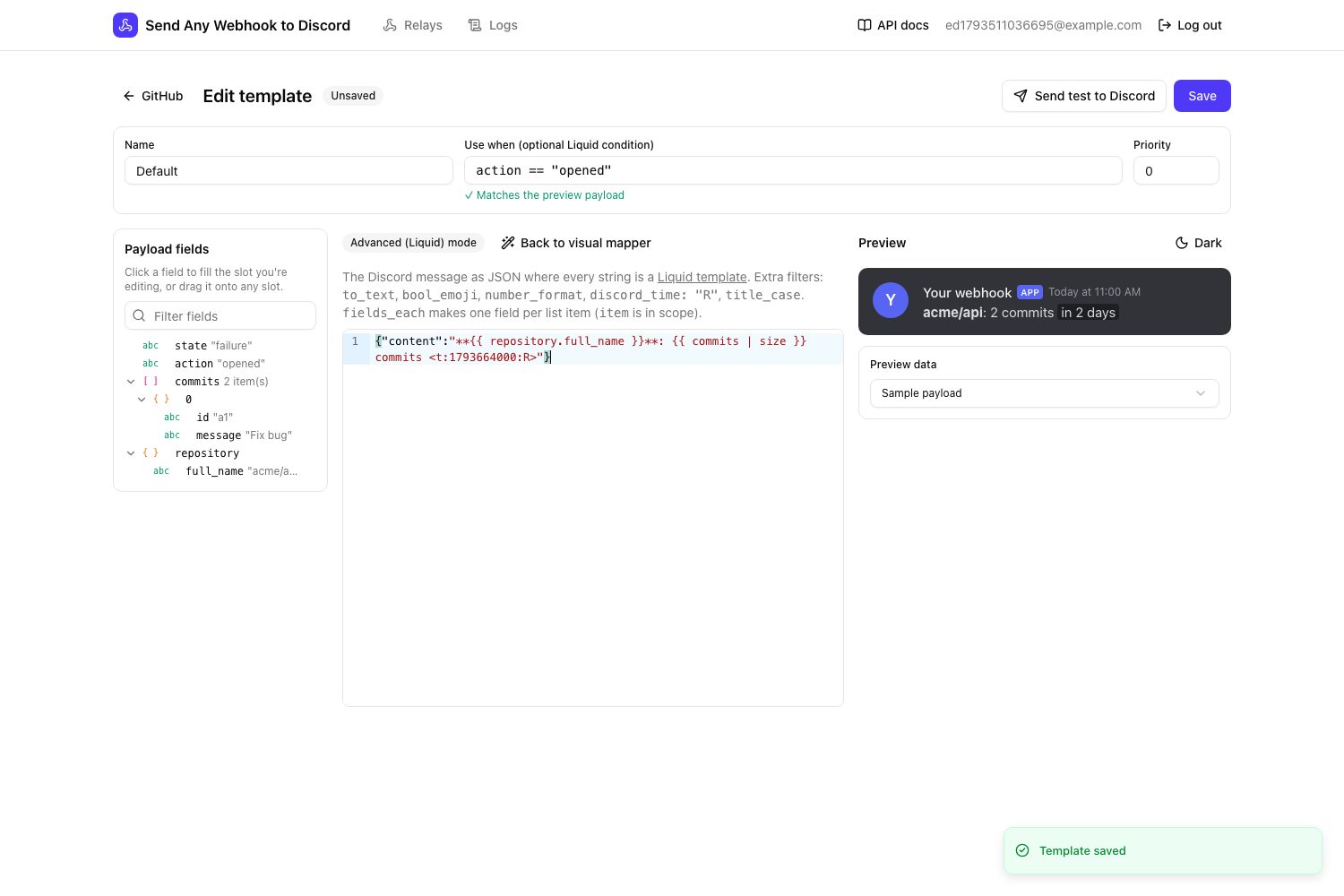
Edits in Advanced mode can’t be turned back into a visual mapping. Back to visual mapper discards them and restores the mapping as it was before you switched.